
If you want to create a new task that is the same as an existing task, you can quickly copy the task. For example, you may want to run the same task at night as you run during the day, but want to keep them separate.
To copy a task:
1. Press Menu > Tasks > New Task > Copy. The Pick a Task panel appears (at right) showing a list of all tasks in all TASKDATA files on the terminal.
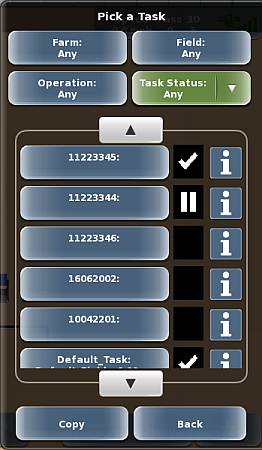
2. To filter the list, use the buttons above the list:
• Press the Farm, Field, or Operation to display a panel showing all related items from which you can select. For example, press Farm to display the Select Farm panel, press an item in the list, then press Select. You are returned to the Pick a Task panel and the list shows only those farms based on your selection (the selection appears on the Farm button).
• Press Task Status to display a drop-down of each status type. Press to select a status. The list is filtered to show only those tasks with the selected status.
3. Use the up/down scroll buttons to scroll through the list of tasks then press the task button (left button) of the task you want to copy.
Note: Press the 'i' button to display the Task Info panel for a task. See the following topic for more information.
4. Press Copy. A message appears asking if you are sure you want to copy the task.
Press Yes. A message appears asking if you want to make this task the current task. Press one of the following:
o Yes. If the previous task was running, a message appears asking if you want to pause or finish the current task. Press Pause or Finish accordingly.
o No. The current task remains unaffected (for example, if the current task was running, it is still running).
5. Press Back/Close repeatedly or press the close panel button to close the panel, or press the hide panel button to hide the panel.