To activate a TASKDATA file:
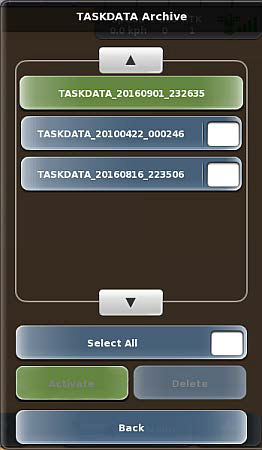
1. Press Menu > Tasks > TASKDATA Archive. The TASKDATA Archive panel appears (shown at right). The button of the currently active TASKDATA file is green.
2. Use the up/down scroll buttons to scroll through the list of TASKDATA files then press the white box of file you want to activate.
Note: Selecting one TASKDATA file enables the Activate button, but selecting more than one TASKDATA file disables the Activate button because you can activate only one file.
3. (Optional) Press a TASKDATA file button (to the left of the white box) to display the TASKDATA Preview panel, on which you can view all the tasks that comprise that TASKDATA file.
4. Press Activate. A 'Loading TASKDATA' message may appear briefly. The selected file is active (button has green background) and the previous active TASKDATA file how has a blue background (you can activate or delete it).
5. Press Back/Close repeatedly or press the close panel button to close the panel, or press the hide panel button to hide the panel.