
Keep the following in mind when loading an existing task:
• You can load any existing task that has not been finished.
• If you try to load an existing task when another task is still running, MAX prompts you to either pause or finish the current task.
To load an existing task:
1. Press Menu > Tasks > Task List. The Task List panel appears (shown at right) showing all tasks in the current TASKDATA file. In the list, the button of the currently active task is green.
Note: If the task you want to load is not in the list (not in the current TASKDATA file), you may need to activate a different TASKDATA file (that contains the task). See the following topic for more information.
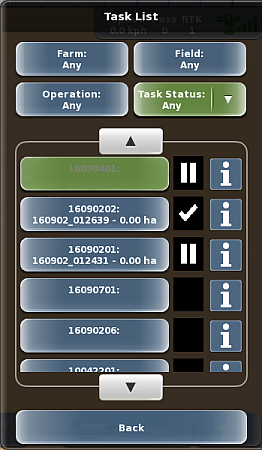
2. To filter the list, use the buttons above the list:
• Press the Farm, Field, or Operation to display a panel showing all related items from which you can select. For example, press Farm to display the Select Farm panel, press an item in the list, then press Select. You are returned to the Task List panel and the list shows only those farms based on your selection (the selection appears on the Farm button).
• Press Task Status to display a drop-down of each status type. Press to select a status. The list is filtered to show only those tasks with the selected status.
3. Use the up/down scroll buttons to scroll through the list of tasks then press the task button (left button) of the task you want to load.
• Keep in mind you can load only those tasks that have a status of paused (first and third tasks at right) or initial (fourth and fifth tasks at right); you cannot load a finished task (check mark, second task at right).
• If your current task is running, MAX prompts you to pause or finish (complete) the current task.
Note: Press the 'i' button to display the Task Info panel for a task. See the following topic for more information.
4. Press Back/Close repeatedly or press the close panel button to close the panel, or press the hide panel button to hide the panel.