
Use the Task Details screen to:
• View details associated with a task
• Select up to three details to appear on the Indicator tab
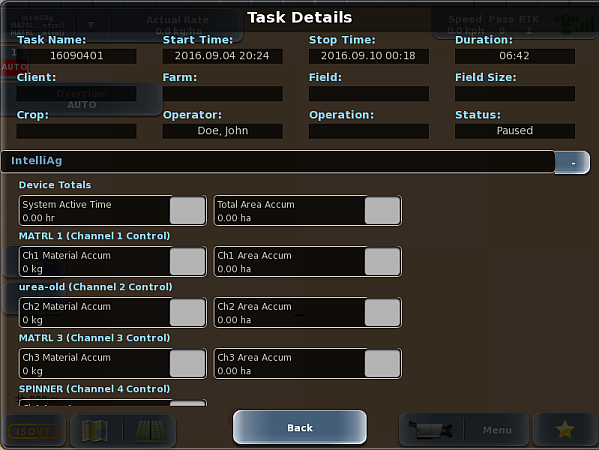
To view task details and select details for display on the Indicator tab:
1. Press Menu > Tasks > Current Task > Task Details. The Task Details screen appears.
• The top three rows of fields are read only.
• If an implement drop-down appears below the fields, press the + at the far right of the field (the '+' changes to a '-') to display related totals.
2. Press the gray box for up to three totals to appear below the task name/number on the expanded Indicator tab.
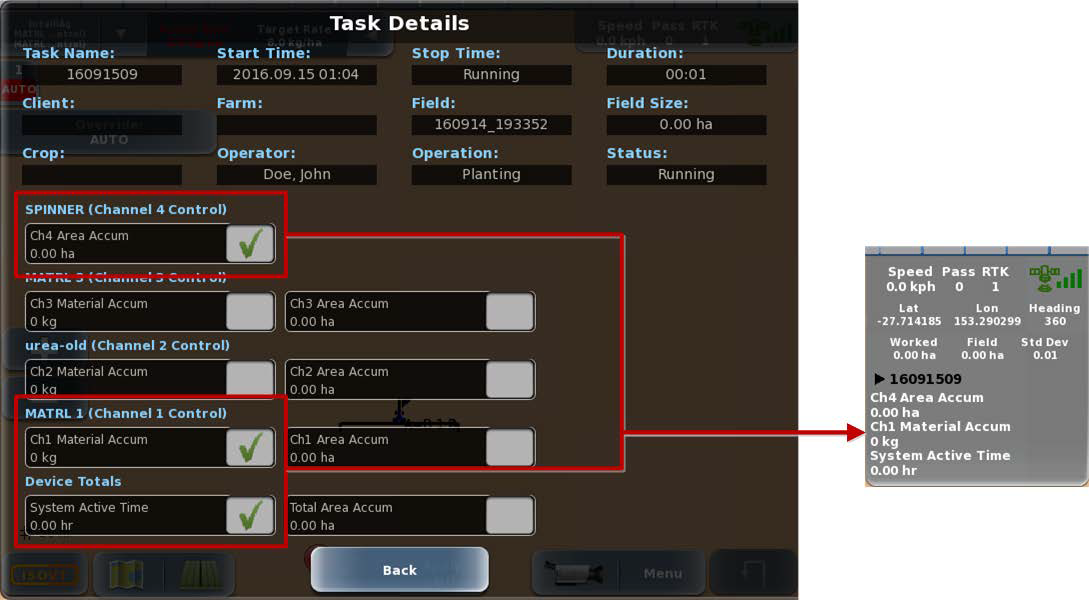
3. Press Back/Close repeatedly or press the close panel button to close the panel, or press the hide panel button to hide the panel.