
Caution: Deleting a TASKDATA file permanently removes the file and its data—you cannot retrieve a deleted TASKDATA file.
You can delete all TASKDATA files except the currently active TASKDATA file.
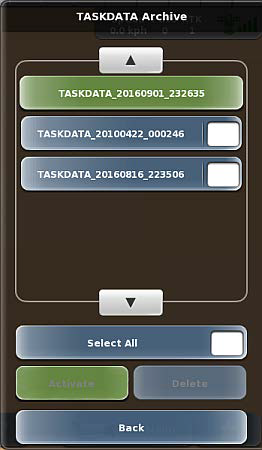
To delete a TASKDATA file:
1. Press Menu > Tasks > TASKDATA Archive. The TASKDATA Archive panel appears (shown at right). The button of the currently active TASKDATA file is green.
2. Use the up/down scroll buttons to scroll through the list of TASKDATA files then press the white box of files you want to delete.
Note: Selecting one or more TASKDATA files enables the Delete button.
3. (Optional) Press a TASKDATA file button (to the left of the white box) to display the TASKDATA Preview panel, from which you can view all the tasks that comprise that TASKDATA file.
4. Press Delete. A confirmation message appears.
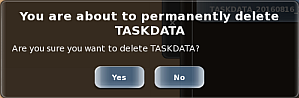
5. Press Yes to delete the file. The file is deleted and removed from the list.
6. Press Back/Close repeatedly or press the close panel button to close the panel, or press the hide panel button to hide the panel.
Attached is a blank TASKDATA file to allow users to delete there old Fields and Tasks.